"Locking" Manuals for Editing while in review

Hi Web Manuals Community,
We are a small organisation with approx 7 Editors who can amend manuals. My role is to prepare manuals for submission to the CAA and to publish once approved.
I often come across an issue where Editors continue to make amendments even when the manual is showing in "Review" status. Unfortunately at present there isn't a way to lock down manuals for editing whilst in review, and the use of password during a workflow only works for moving into the next stage, rather than going back to draft.
I have started using a solution in which I use a page label on the manual front page saying "do not edit this document". I think this gets the message across, however I would be interested to hear if anyone else experiences the same issue or if anyone has other workaround ideas !
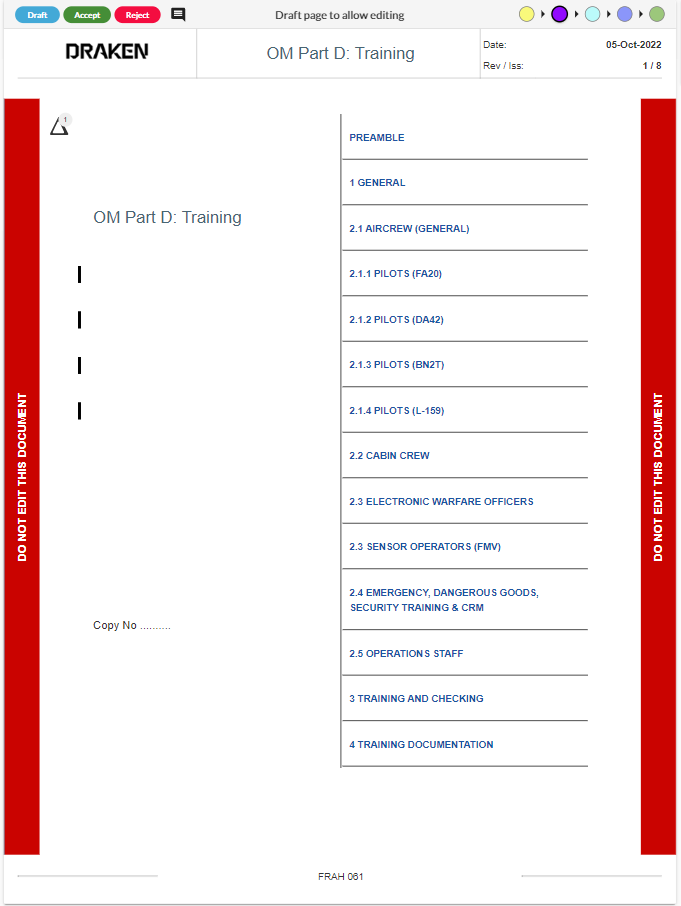
Many thanks
Lauren
Comments
Hi Lauren,
The solution for your case is to use Document Specific Workflow Security. Using this feature, you can establish who participates in each step of your revision workflow, for example, who is allowed to draft pages.
If you want to test and see if it works for you, proceed as follows:
Under Settings > Document Types, take the document type you're using and select the option below:
Go to your document, the select Settings > Editor/Review Access:
Here you'll notice that you can have more granular control by defining the participants of your revision workflow for the specific document. In the example below, users can only put pages on draft if they are Admins OR if assigned to any of the two roles ("X_Editor FOPS" or "Y_Owner OM-B E2"). You may, of course, define as many roles and name them as you wish.
To disable editing, you will have to:
Should the editors need to make further amendments before the document is published, all you have to do is to put the Roles back in the draft step. The same applies when a new revision is to be carried out.
I also recommend always having the Admin role in all steps of the workflow above. Here I'm assuming at least two admins and the scenario where one of them is on leave.
Therefore, to disable editing as you move along in the revision workflow:
I hope the explanation was clear.
Best regards,
Hi Bruno,
That is a great solution thank you !
Much appreciated
Lauren
Hi again Lauren. Adding to previous.
You may also use the option Custom Workflow Security. This option allows you to do the same as previously explained but at the Document Type Level instead of at the document level. This solution gives you, therefore, less granular control though it may also work for your case.
You will then need to go to the document, then Settings > General Settings and take control from there:
Best,
Good morning
The lock feature has been implemented. Once locked only the owner and admin can unlock it.
"Document can now be locked when sent for review. When the lock is activated, pages can not be drafted or edited, but they can still be rejected and approved. The lock can be activated and deactivated by document owners and admins. This feature is activated in Site settings under documents. - MANUALS-6014"
It is suggested that the unlocking of the document is not restricted to owner and admin but dependent on user type.
Good weekend
Karl
Please sign in to leave a comment.